Menu bar
The icon
Section titled “The icon”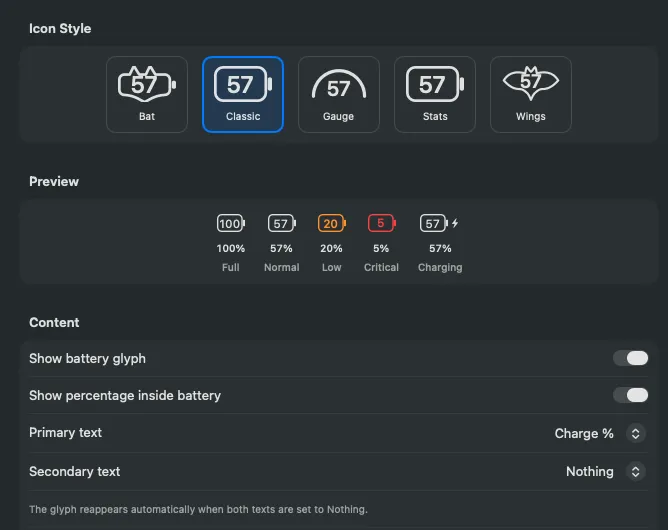
The icon shows the charge at a glance in one of five styles: Bat, Classic, Gauge, Stats and Wings. Pick one in Settings › Menu Bar, where you can also:
- show the percentage next to the icon or inside it,
- add a second reading: health, time remaining, temperature, watts or current charge in mAh,
- tint the icon orange at a low level you choose (20% by default) and red at 10%, and optionally blue while charging and green when full.
While Keep Awake runs, a small cup appears next to the icon.
The popover
Section titled “The popover”Click the icon for charge and health, the charge details, the last 24 hours and the live power flow. Its buttons open the Overview window, switch Low Power Mode and start or stop Keep Awake. The gear button holds Settings, Check for Updates, Report a Problem, About and Quit. The pin keeps the popover open as a detached window.
The dashboard
Section titled “The dashboard”Overview opens the full window: Overview, History, Energy and Peripherals for the battery, Power and iPhone for the controls, then the settings. The app icon can be Original, Gauge, Bat Battery or Stats in Settings › Appearance.